GoDaddy Delegate Access
Grant Black Tiger Digital Delegate Access to Your GoDaddy Domains
Follow the steps below. Takes about 2 minutes. Once you send the invite, we accept and start helping manage your domain.
Delegate access does not change ownership. You stay in full control of your account and domains.
Why This Matters
This Is How We Help Manage Your Domain
Your domain is the foundation of your online presence. DNS records, nameservers, and domain settings all affect how your website and email work.
Giving us delegate access lets us manage DNS records, point your domain to the right hosting, configure email settings, and troubleshoot issues without needing your GoDaddy password.
Access Requested
Level: Domains Only
"Domains Only" access lets us manage domain settings without touching anything else in your GoDaddy account. We cannot see billing, hosting products, or your personal information.
Delegate access never shares your password. You can revoke access at any time with one click.
We only see your domains. We cannot access billing, hosting, email accounts, or other GoDaddy products.
No GoDaddy Account Needed on Our End: The person you invite will receive an email. If they do not have a GoDaddy account, GoDaddy will ask them to create a free one to accept.
Best practice: Use delegate access instead of sharing your login. It is more secure and gives you full control over what others can see and do in your account.
Step-by-Step Guide
Grant Delegate Access in GoDaddy
Follow these steps in order. Each step includes a description to help you match what you see on screen.
Pro Tip: Open this page on one screen (or phone) and GoDaddy on another. Follow along step by step.
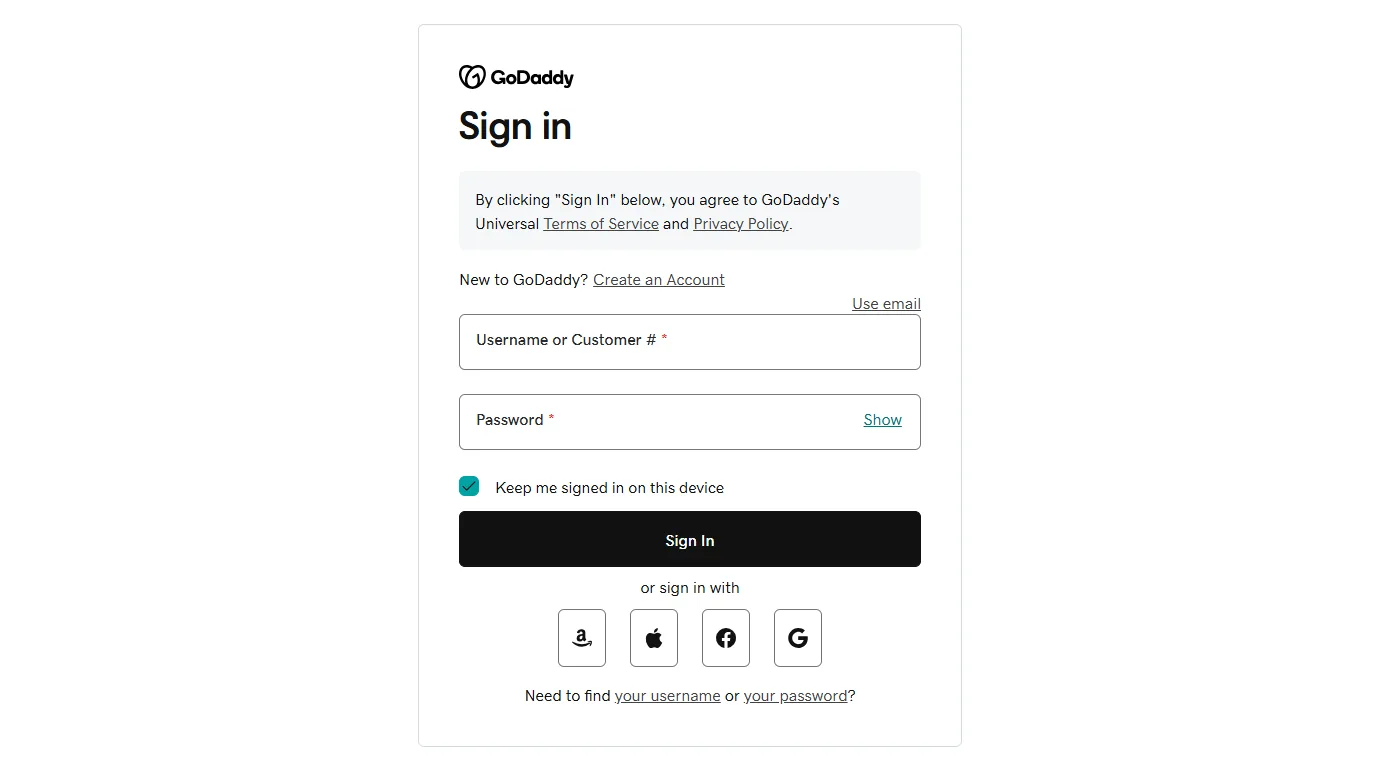
Log In to GoDaddy
Go to godaddy.com and sign in with the account that owns the domain you want us to manage. You need to be the account holder to set up delegate access.
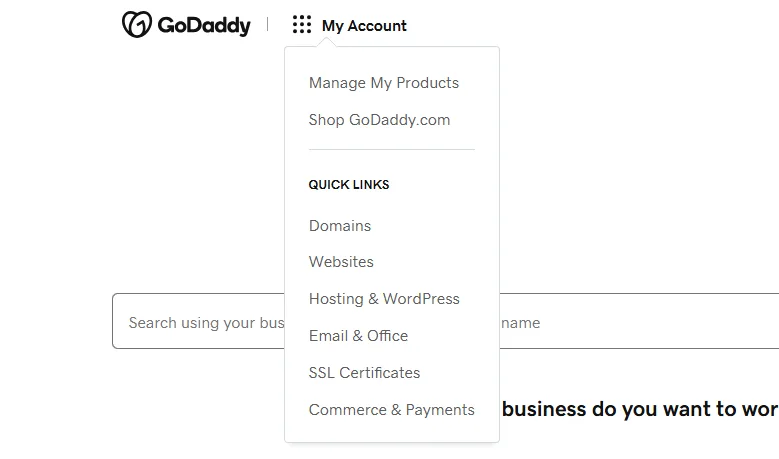
Select "My Account"
Once signed in, click your name or profile icon in the top right corner, then select My Account from the dropdown menu. This takes you to your account dashboard.
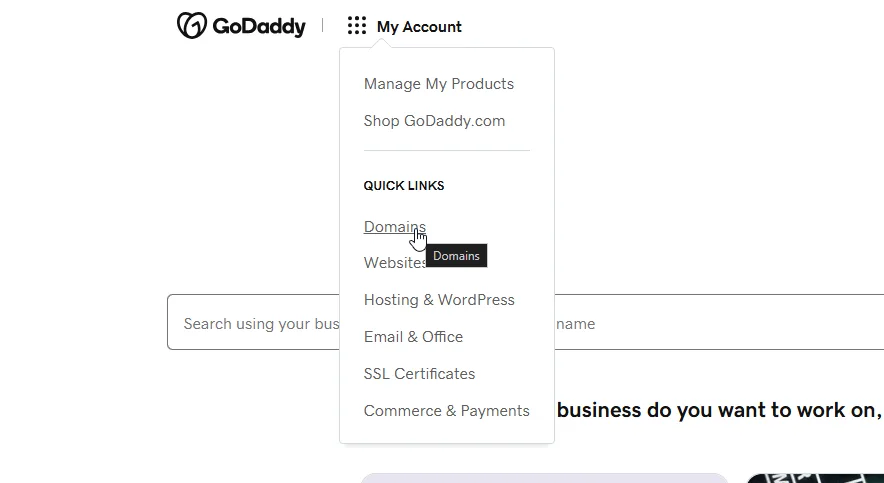
Click "Domains" Under Quick Links
On your account dashboard, look for the Quick Links section. Click Domains to go to your domain management area where all your registered domains are listed.
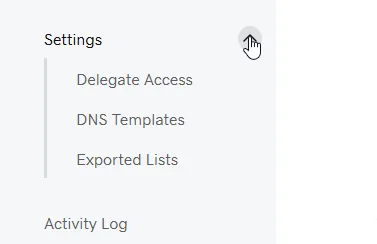
Go to Settings → Delegate Access
From the domains area, click Settings in the navigation. Then find and click Delegate Access. This is where you manage who else can access your account or domains.
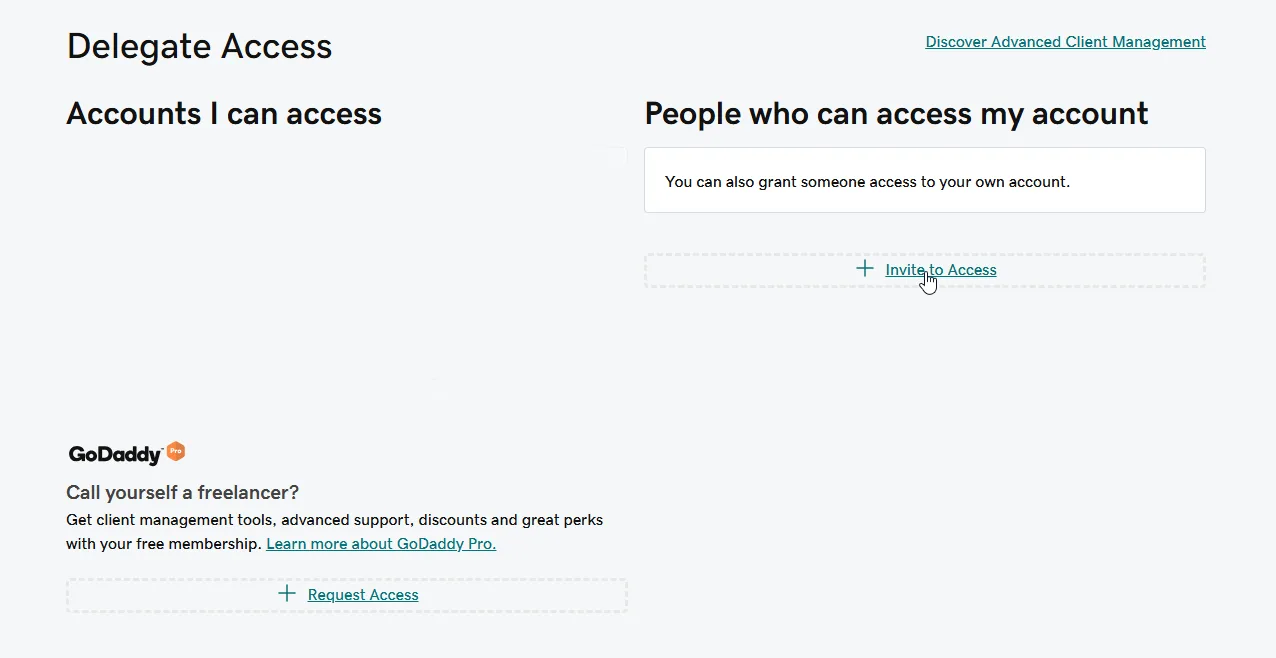
Click "Invite to Access"
On the Delegate Access page, look for the Invite to Access button under the "People who can access my account" section. Click it to open the invitation form.
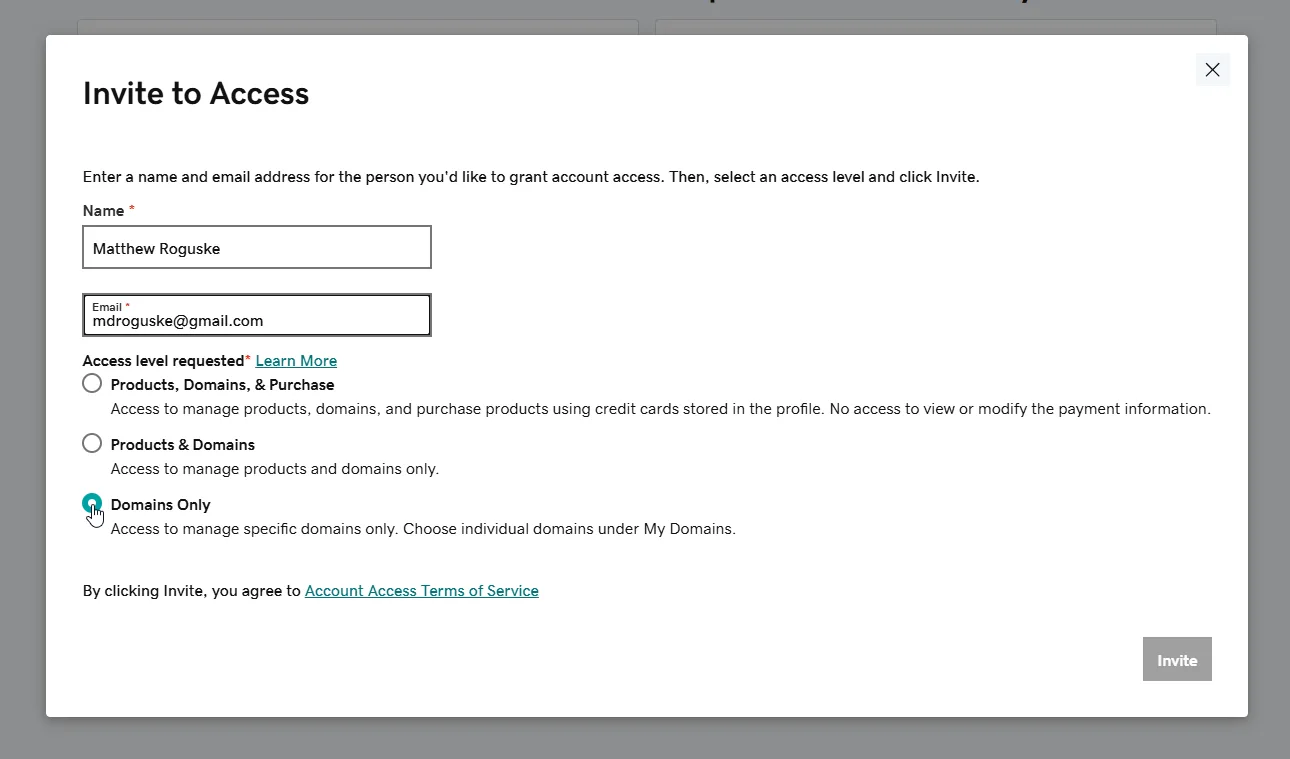
Enter Our Info and Select "Domains Only"
Fill in the invitation form with the following:
Then select Domains Only as the access level. This limits access to domain management only.
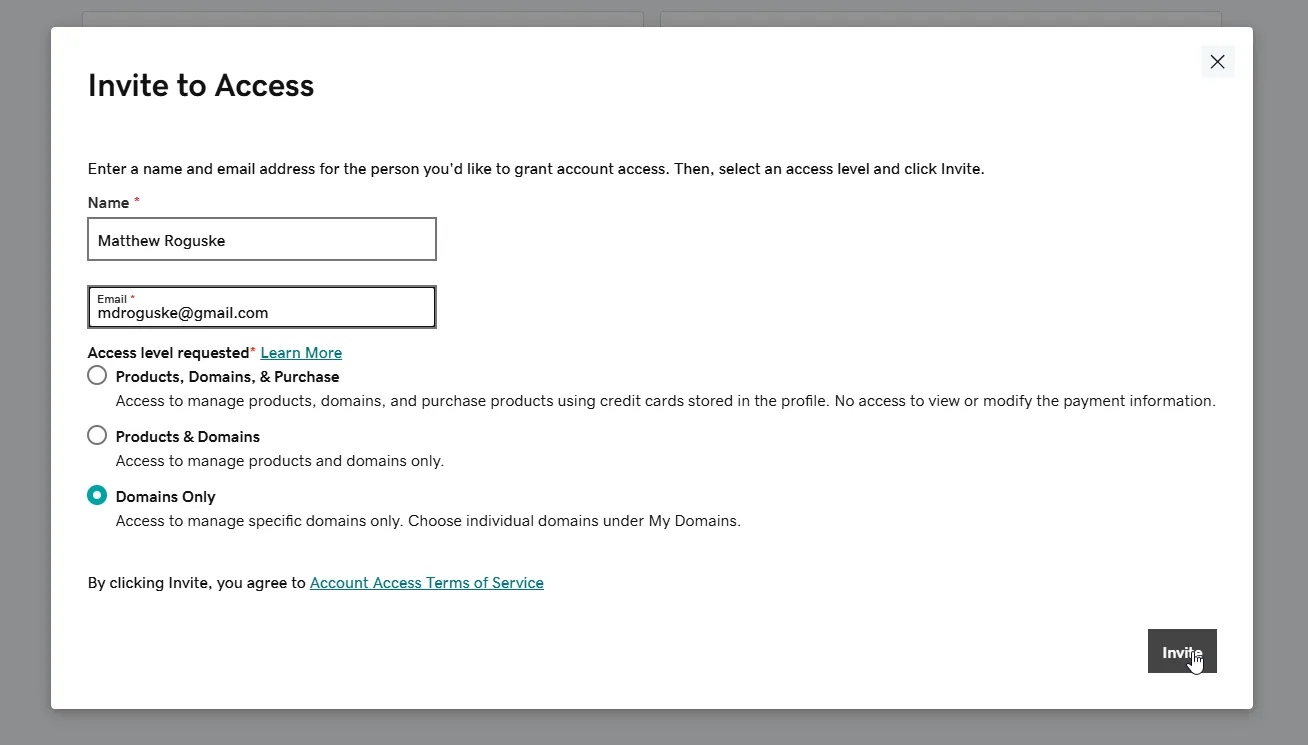
Send the Invitation
Click the Invite button to send the invitation. GoDaddy will email us with a link to accept. Once we accept, you will see us listed as a delegate on your account. You are done!
Confirm It Worked
After sending the invite, you should see our name listed on your Delegate Access page with a "Pending" status. Once we accept (usually same business day), the status updates and we can begin managing your domain.
What Access We Need
"Domains Only" Keeps Things Simple and Secure
We only ask for what we need. "Domains Only" lets us manage your domain settings without touching anything else in your GoDaddy account.
What We Can Handle
- DNS record management
- Nameserver configuration
- Domain forwarding
- Subdomain setup
- Email routing (MX records)
- SSL/TLS verification records
- Domain troubleshooting
What We Cannot Access
- Your payment methods
- Your GoDaddy password
- Hosting products
- Email accounts
- Account billing info
- Domain transfers to another registrar
- Other GoDaddy products
Revoke anytime: You can change or remove our delegate access at any time from the same Delegate Access page. No need to contact us first.
Troubleshooting
If Something Looks Different
These are the most common questions when setting up delegate access in GoDaddy.
Still Stuck?
Send us a screenshot of what you see and we will walk you through it. Sometimes GoDaddy moves things around, and a screenshot helps us point you in the right direction fast.
Once You Send the Invite, We Move
After access is confirmed, we start managing your domain settings, DNS, and whatever else needs attention. Your domain starts working the way it should.