Google Business Profile Access
Invite Black Tiger Digital to Manage Your Google Business Profile
Follow the steps below. Takes about 2 to 3 minutes. Once invited, we confirm access and start optimizing.
Inviting us does not change ownership. You stay in control of your profile.
Why This Matters
This Is How We Improve Visibility in Maps and Local Search
Your Google Business Profile affects map rankings, calls, direction requests, and trust.
Giving us access lets us clean up your info, tighten categories, publish updates, improve photos, respond to reviews, and monitor performance over time.
Access Requested
Role: Manager (Recommended)
Manager access lets us do the work without changing ownership. If we specifically ask for Owner access, we will explain why and what changes.
You must be signed into a Google account that is an Owner on the profile to send invites.
Enter our email address and select the Manager role when prompted.
Interface Changes: Google updates their interface often. If your menus look different, do not panic. Use the labels below and you will still get there.
Best practice: Keep at least two Owners on the profile (in case one loses access), and invite us as a Manager.
Step-by-Step Guide
Grant Manager Permissions
Follow these steps in order. Each step includes a screenshot to help you match what you see on screen.
Pro Tip: Open this page on one screen (or phone) and Google Business Profile on another. Follow along step by step.
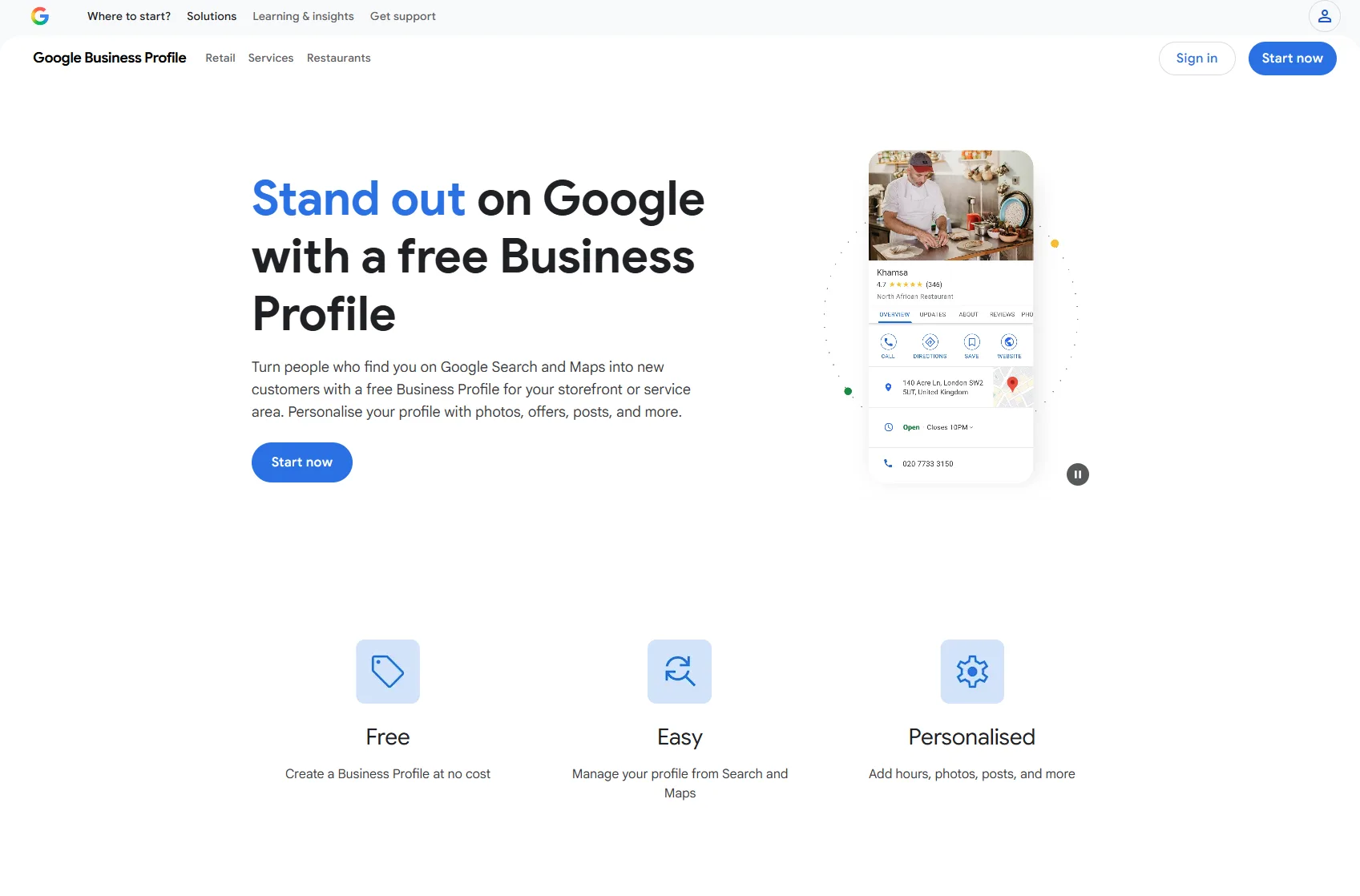
Sign In to Google Business Profile
Go to business.google.com and sign in using the Google account that is an Owner on the profile. This is required to invite new users.
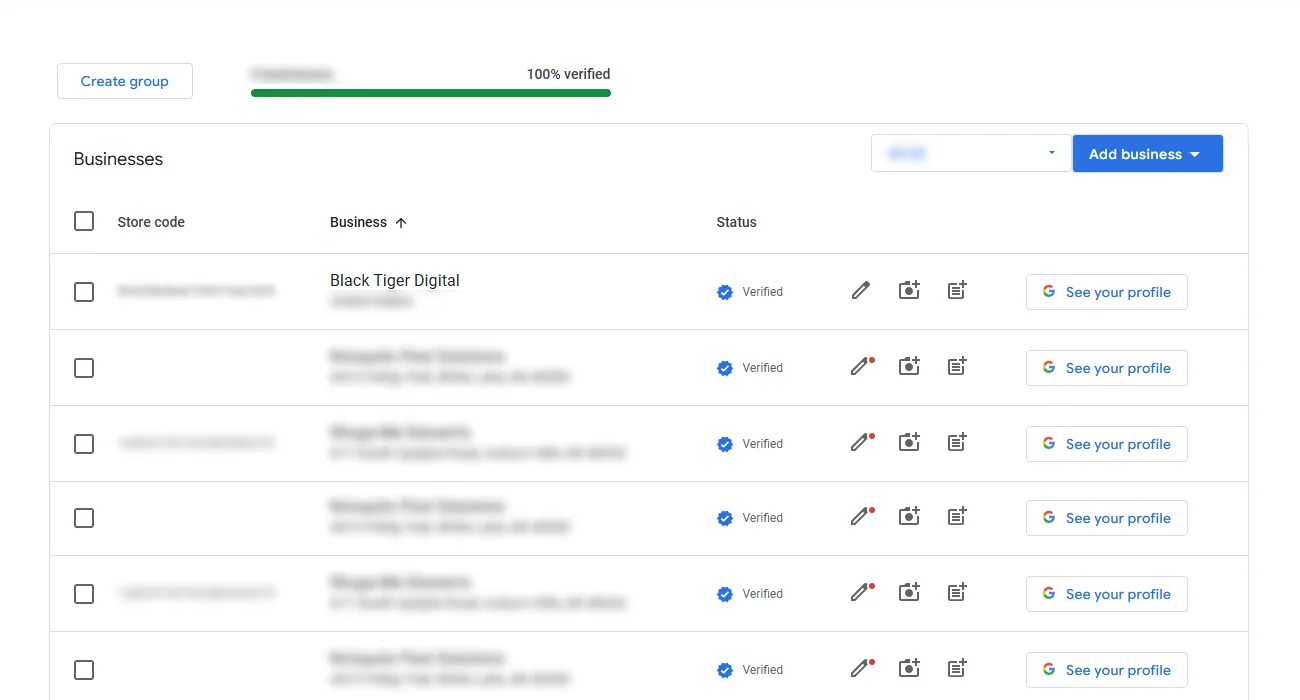
Select Your Business Location
If you manage multiple locations, click the one you want us to manage. You will see a list of your verified business profiles.
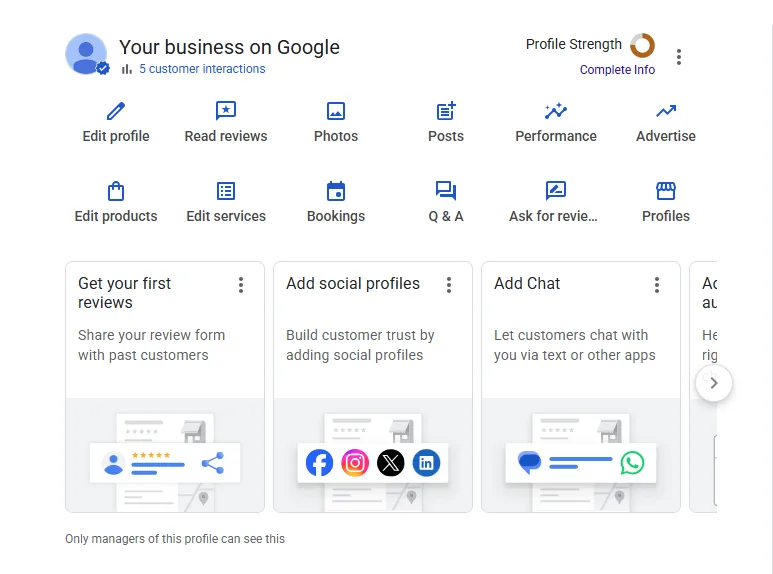
Open the Three-Dot Menu
Look for the three vertical dots (⋮) in the top right corner of your profile card. Click it to open the menu. You may also see this labeled as "More."
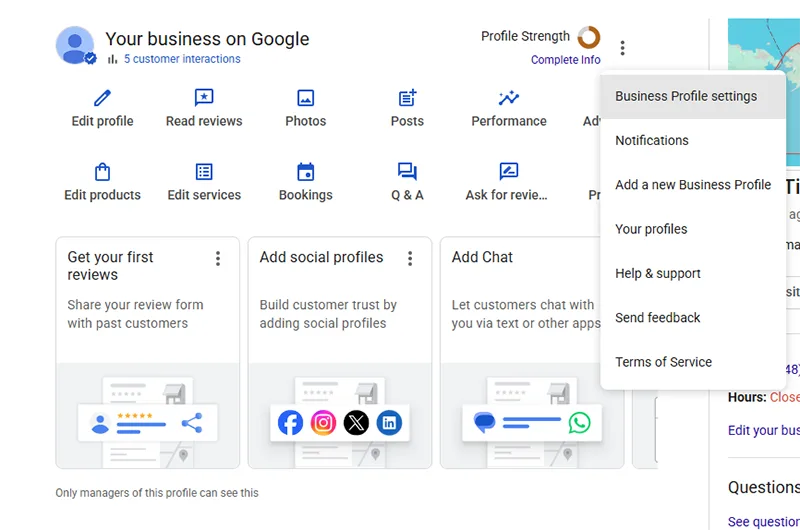
Click "Business Profile Settings"
From the dropdown menu, select Business Profile settings. This opens the settings panel where you can manage users and permissions.
Select "People and Access"
In the settings panel, click People and access. This may also appear as "Users," "Managers," or "User management" depending on your interface version.
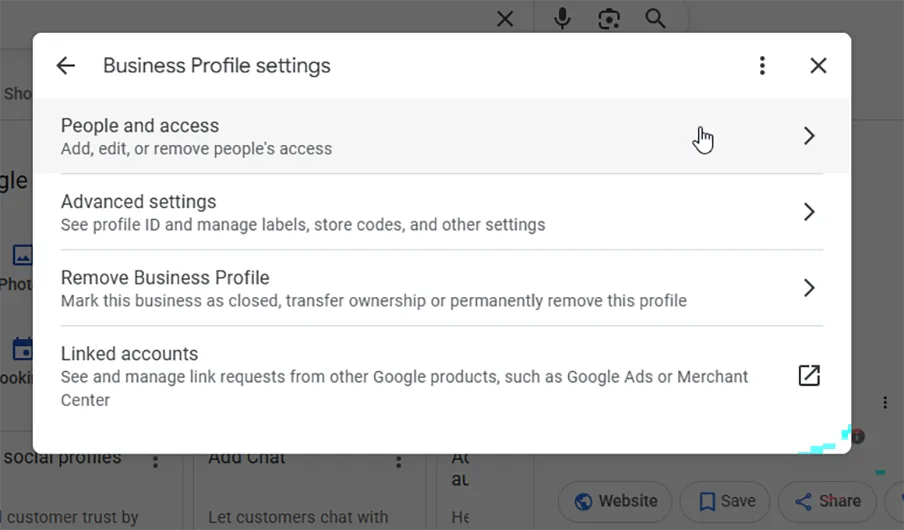
Click "Add" to Invite a New User
Click the Add button (or "Invite new users" or the + icon). This opens the invitation form where you will enter our email address.
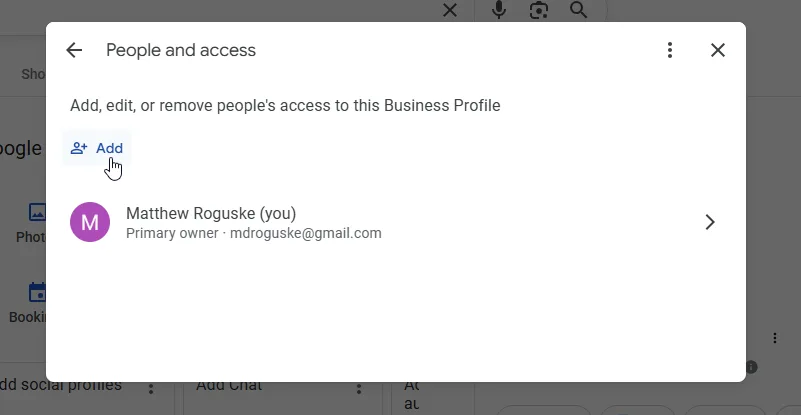
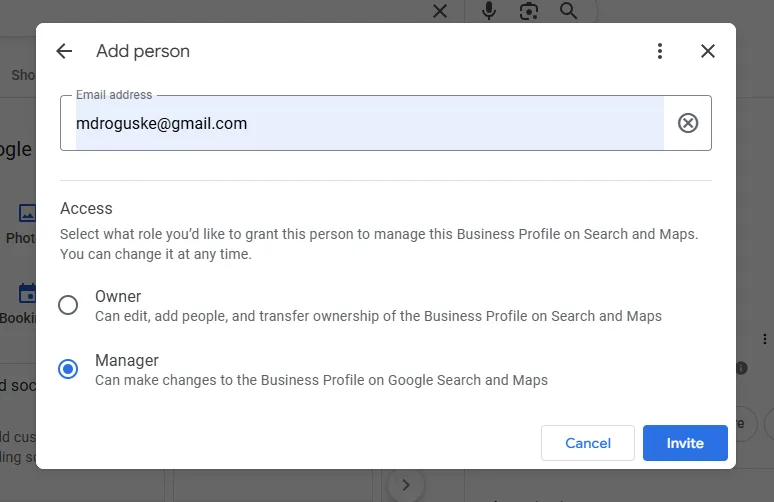
Enter Our Email and Select "Manager"
In the email field, enter:
Then select Manager as the role (unless we specifically requested Owner access).
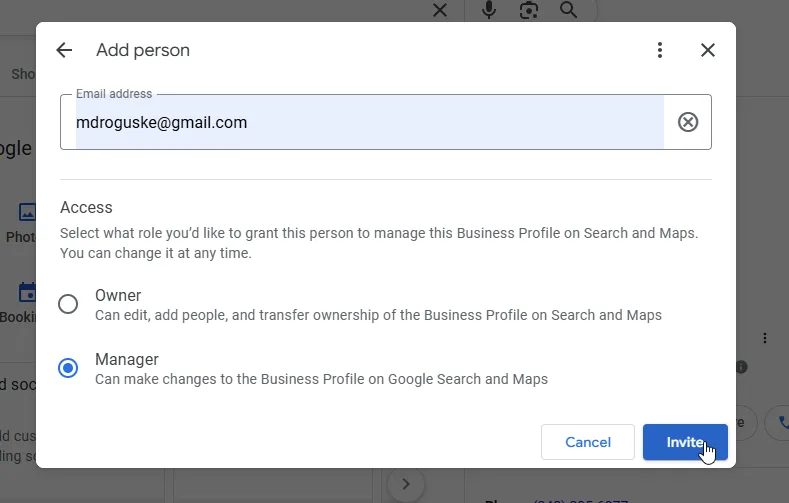
Click "Invite" to Send
Click the Invite button (or "Send invitation"). Google will send us an email. Once we accept, you will see us listed as a Manager on your profile. You are done!
Confirm It Worked
After sending the invite, go back to "People and access." You should see our email listed with a "Pending" status. Once we accept (usually same business day), the status changes to "Manager."
What Access We Need
Manager Access Is Enough for Almost Everything
We only ask for what we need. Most Google Business Profile work is done with Manager permissions.
What We Can Handle
- Categories and services
- Hours and description
- Photos and posts
- Messaging settings
- Q&A management
- Review responses
- Performance insights
- Ongoing profile hygiene
Owner Access (Rare)
We might request Owner access for specific ownership-level tasks, verification issues, or edge cases. If that happens, we will explain exactly why before you change anything.
Suspensions and Verification: If your profile is suspended or needs verification, that is handled inside Google. We will guide you through the process, but the Owner must complete the verification steps.
Troubleshooting
If Something Looks Different
These are the most common issues when inviting an agency to manage a Google Business Profile.
Still Stuck?
Send us a screenshot of what you see, plus your business name and location. We will tell you exactly where to click or help troubleshoot the issue.
Once You Send the Invite, We Move
After access is confirmed, we start cleanup, optimization, and ongoing monitoring. Your profile starts working harder.